What Works in This iPhone Workflow
- Confirmed AI-related metadata in full JPG and PNG files
- A separate verified copy, processed locally in your browser
- Up to 10 files and 100 MB per mobile batch; each file must be 25 MB or smaller
Use Safari to check a photo before sharing it. Keep the original in Photos and work with a separate, fully downloaded JPG or PNG.
Quick Answer
You can check and clean supported AI label metadata on iPhone without installing an app. Select a full JPG or PNG in the tool above and download the verified copy. HEIC and Live Photo video components are not supported, and this does not change a label on a published post.
Drop, paste, or choose image files
JPG & PNG · WebP inspection only · Up to 25 MB each · No image upload
iPhone photo in HEIC? Save or export it as JPG first.
No file handy?
Reviewed September 6, 2026 Sources: Apple photo-download guidance and Meta labeling policy File selection and download menus depend on your iOS version.
No app installation is needed. Start with one full JPG or PNG so it is easy to identify the result.
| Step | What you should see |
|---|---|
| 1. Choose image files | Select the final JPG or PNG. If you only have HEIC, follow the export guidance below first. |
| 2. Review the file result | File-level clean copy ready provides a verified download. Already clean means no supported target was found; other statuses explain why no clean copy is offered. |
| 3. Download Cleaned Image | Use the download link in that file's result. Find the filename ending in -clean in your browser downloads or configured download folder. |
| 4. Share the new copy | Open it and check the picture. The original and cleaned copy can look identical, so select the new filename deliberately. |
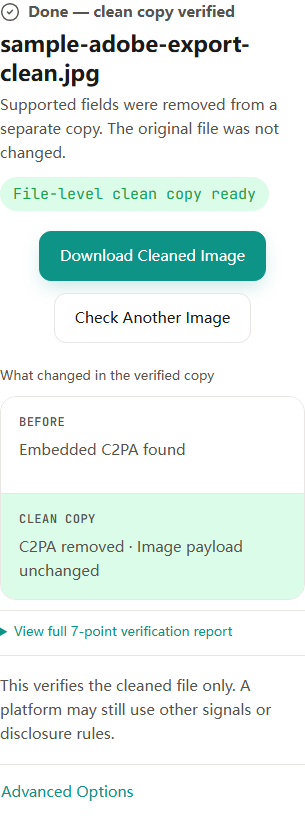
A thumbnail in Photos is not enough to inspect the original file. Let the photo finish downloading before you select it. Choosing a locally saved file from Files makes it easier to identify the exact copy you are checking.
Apple documents Export Unmodified Originals for saving an archive copy to Files. That preserves the captured or imported format, so it may still be HEIC and it will not include your later edits. Keep it as your original, rather than mistaking it for your final edited export.
This tool cannot clean HEIC. For a photo in iCloud, Apple's iCloud.com download options include Most Compatible, which provides JPEG for photos. You can also use an editor's JPEG or PNG export. Inspect the resulting file here before sharing it.
Changing .heic to .jpg in a filename does not convert the image. A genuine conversion may also change metadata or image encoding, so check the exported picture's appearance. The local JPG/PNG cleanup itself does not re-encode image data.
After downloading, use Safari's downloads list or your configured download folder in Files to open the result. Its filename ends in -clean. Check the picture, then use the share sheet to save or share it if that option is available on your device.
If you save it back to Photos, the original and cleaned copy may look identical. Select the new copy deliberately. A subsequent edit or export creates another file, so check again after that step. The tool does not alter the photo already stored in your library.
01
Keep the original and finish editing. Save a complete JPG or PNG that shows the version you want to post.
02
Open this page in Safari. Choose image files and select the local export from the picker.
03
Wait for the per-file result. Download only when a verified cleaned copy is ready.
04
Open the -clean file in your downloads, confirm it looks right, and select that copy for sharing.
Official documentation supports the platform and file-format claims below. Community posts show reported questions, not proof of platform behavior.
Official source
Explains original downloads to Files and the Most Compatible JPEG option on iCloud.com.
Official source
Describes industry signals, creator disclosure, and the distinction between AI-generated and AI-edited content.
No. The tool runs in your browser without an account. Your selected images are processed locally, rather than uploaded to our application server.
JPG and PNG cleanup, WebP inspection, and formats this tool cannot process.
Guide →Understand file signals and the limits of a local check before posting.
Guide →Review every still in a Photo Mode post, separately from video.
Guide →Why a camera-made photo may still carry an AI-related editing record.
Guide →